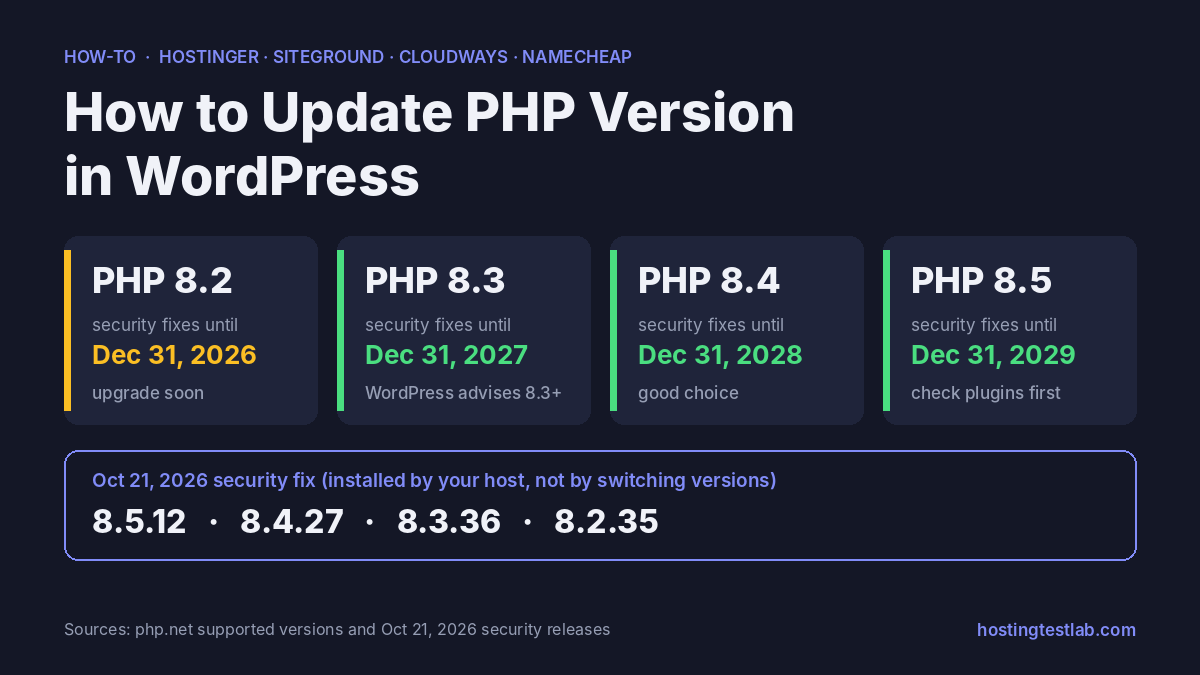
To learn how to update PHP version WordPress runs on, you change it in your host’s panel, not inside WordPress: back up the site, pick PHP 8.3 or 8.4, apply it, then confirm the new number under Tools → Site Health → Info → Server. The exact menu differs by host, and the steps for Hostinger, SiteGround, Cloudways and Namecheap are below. One point matters this week: switching versions is not how you get the October 21, 2026 security fix. On their managed plans, all four hosts installed that patch for you. Steps and patch statuses were checked on October 30, 2026, on each host’s help pages and status posts, php.net and WordPress.org.
Which PHP version to choose
A PHP version such as 8.3 is a branch. Each branch gets two years of active support, then two years of security fixes only. After that, the PHP project stops patching it.
| PHP version | Security fixes until | For a WordPress site |
|---|---|---|
| 8.5 | Dec 31, 2029 | Supported by WordPress 7.0 and 7.1; check your plugins first |
| 8.4 | Dec 31, 2028 | Good choice |
| 8.3 | Dec 31, 2027 | Good choice, and WordPress’s recommended minimum |
| 8.2 | Dec 31, 2026 | Upgrade within two months |
| 8.1 and older | Ended | Upgrade now |
WordPress recommends PHP 8.3 or newer. PHP 8.2 still gets fixes, but only until December 31, 2026, so moving to 8.2 today means doing this again in two months. For most sites, 8.3 or 8.4 is the safe middle: both are supported for at least another year and run current WordPress.
Before you change anything
- Back up the site. If a plugin breaks, a backup is the quickest way back.
- Update WordPress, your theme and your plugins under Dashboard → Updates. WordPress.org puts this step before any PHP change, then suggests the PHP Compatibility Checker plugin to scan themes and plugins. It can miss issues or flag false ones, so treat it as a first check.
- Test on a copy if the site earns money. A staging site lets you switch PHP there first. Our guide to creating a WordPress staging site covers each host.
How to update PHP version WordPress runs on, host by host
How to change PHP version in Hostinger
- In hPanel, open Websites, hover over your site and click Manage site.
- In the sidebar, open PHP Configuration.
- Select the version and click Update. Hostinger says the change takes effect within a couple of minutes.
You can choose PHP 8.2 to 8.5. Hostinger no longer lets you select 8.1 or lower, and new sites start on 8.3. Two limits catch people out: the version applies to every website on the plan, and you can only upgrade, with no way back except within the same login session. If one old site can’t handle the new version, test it on staging first.
SiteGround PHP version
- In Websites, click Site Tools next to your site.
- Go to Devs → PHP Manager and click the pencil icon next to Change PHP version.
- Pick Managed PHP or choose a version manually, then click Confirm.
Managed PHP is SiteGround’s default for new accounts: it moves your site to newer PHP versions as SiteGround updates its server default. If you pick a version manually, SiteGround stops updating it, and the upgrade becomes your job. For most WordPress owners, Managed PHP is the better setting.
Cloudways PHP version
- Open Servers and select your server.
- Under Server Management, open Settings & Packages, then the Packages tab.
- Next to PHP, choose the new version.
This is a server setting. Cloudways also has a per-application option (Application Settings → PHP Settings), but it is in Public Preview and starts on newly launched servers only. Cloudways says that change causes a few seconds of backend downtime for that app, and suggests a backup and a staging test first.
Namecheap (cPanel)
- Log in to cPanel and open Select PHP Version. It sits under Exclusive for Namecheap Customers, or under Software on some servers.
- Choose a version from the Current PHP version drop-down and click Apply.
The version applies to the whole cPanel account. Namecheap’s guide lists versions up to 8.5 and back to 7.0, with older ones available through support. That makes it easy to stay on an outdated version by accident. A different version for a single addon domain needs an .htaccess handler, and that domain then starts with no PHP extensions enabled. I run my own sites on Namecheap shared hosting and find its cPanel layout easy to follow. Our Namecheap cPanel guide shows where the other tools sit.
Check that the change worked
In WordPress, go to Tools → Site Health → Info → Server and read the PHP version. If it shows 8.3 or higher, WordPress’s own guidance says you don’t need to update right now. On Hostinger, the PHP Info page also shows a build date. A date of October 21, 2026 or later means the security fix is installed, even if the version number didn’t change.
Did the October 2026 PHP vulnerability need you to act?
On October 21, 2026, PHP released 8.5.12, 8.4.27, 8.3.36 and 8.2.35 to fix two remote code execution flaws (CVE-2026-109618 and CVE-2026-109619), both rated 9.2 (Critical) on the CVSS scale. These are patch releases inside each branch, so the host installs them. Picking a newer version in your panel doesn’t do it.
| Host | Patched for you | Your action |
|---|---|---|
| Hostinger | All managed hosting by Oct 22, 06:44 UTC | None, except on a VPS |
| SiteGround | Mitigations before the release, then fixes applied across all servers | None |
| Cloudways | All active servers by Oct 22 | None |
| Namecheap | All shared hosting servers by Oct 22 | None, except on a VPS or dedicated server |
The exception is a self-managed server. Hostinger and Namecheap both left the PHP update to VPS and dedicated server customers, so you need to install the fixed release yourself and restart PHP. If that is more server work than you want, managed hosting is the alternative: SiteGround’s Managed PHP keeps the version current for you, and Cloudways patched all active servers without customers having to act. Our shared vs VPS hosting guide covers what a VPS leaves to you.
Visit SiteGround Explore Cloudways hosting options
If the site breaks after the change
A white screen or a “critical error” message right after the switch points to a plugin or theme that doesn’t support the new version. On SiteGround, Cloudways and Namecheap, switch back in the same menu, then update or replace that plugin. On Hostinger, switch back before you log out, because downgrading is blocked after the session ends. If you can’t, restore your backup and contact support. If problems with old code keep holding you back, our guide on moving a WordPress site to a new host covers starting fresh elsewhere.
FAQ
Can I update PHP from inside the WordPress dashboard?
No. WordPress shows your version and warns with “PHP Update Required” or “PHP Update Recommended”, but the switch itself happens in your hosting panel.
Is PHP 7.4 still safe for WordPress?
No. WordPress still runs on PHP 7.4, but WordPress.org says versions before 8.2 no longer get security updates from the PHP project. Some hosts backported this month’s fix to old versions, but that is the host’s choice, not a guarantee.
Will a newer PHP version make my site faster?
WordPress.org says updating PHP gives a faster site, but the gain depends on your plugins and caching. Upgrade for the security support. Treat any speed gain as a bonus.