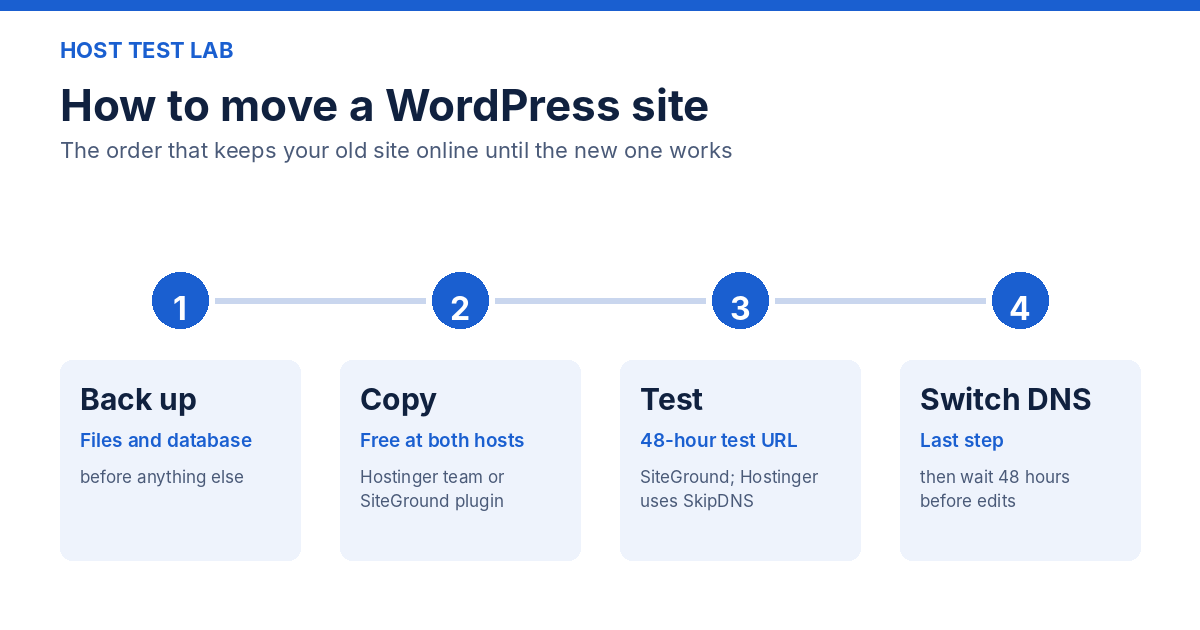
To move a WordPress site to a new host, copy its files and database to the new server, test the copy, and change the domain’s DNS last, so the old site stays online until the new one works. Hostinger and SiteGround both offer a free automatic route for this: Hostinger’s migration team moves the site for you, and SiteGround gives you a free Migrator plugin to run yourself.
The steps come from WordPress.org’s Migrating WordPress handbook, SiteGround’s WordPress Automatic Migrator tutorial (updated March 23, 2026) and Hostinger’s migration support page, all read on October 14, 2026. Hostinger plan prices were checked on October 14 and SiteGround’s on October 13 and 14, 2026.
Before you start
Make a full backup of your site files and your database first. WordPress.org’s handbook starts with exactly this, and every step after it can be repeated if something goes wrong. Then check three limits that decide which route you can use:
- Multisite: neither automatic route moves it. SiteGround’s Migrator does not support Multisite, and Hostinger does not support WordPress multisite migrations.
- WordPress.com sites: SiteGround’s Migrator is not suitable for them, and Hostinger points WordPress.com users to a separate guide.
- Email: Hostinger’s migration does not move email accounts, and SiteGround has a separate Email Migrator for accounts up to 7 GB.
Hostinger and SiteGround migration compared
| Feature | Hostinger | SiteGround |
|---|---|---|
| Who does the copy | Hostinger’s migration team, after you submit a request | You, with the free SiteGround Migrator plugin |
| What you provide | WordPress admin or cPanel login, or a backup file and a .sql database | A migration token, pasted into the plugin |
| Cost of the move | Free on Web, Cloud and Agency plans; VPS plans are not eligible | Plugin is free |
| Old site during the move | Stays online until you point the domain | Stays live; SiteGround says there is no downtime |
| Test before the switch | Screenshot preview, then the SkipDNS tool with your plan’s IP address | Temporary URL, active for 48 hours |
| Not moved | Cron jobs, DNS records, custom SSL configuration, FTP accounts, email | WordPress.com sites, local-computer sites, Multisite |
How to move a WordPress site to a new host, step by step
- Set up the new plan and add your domain. Hostinger needs an active plan with at least one domain added before you request a migration. SiteGround’s Setup Wizard asks for the domain and gives you the migration token. Do not point the domain yet.
- Copy the site. On Hostinger, open Websites, click Import Website, and choose Migrate from another host. Enter your site’s URL and WordPress login, then submit the request. For an offline site, upload one compressed archive of your site root, including the .htaccess file, plus the .sql database. WordPress sites fail to migrate without the database. On SiteGround, install the free Migrator plugin from the WordPress plugin directory, paste the token and click Initiate Transfer. The transfer keeps running if you close the browser.
- Test the new copy. Hostinger shows a screenshot preview when the migration completes, and its SkipDNS tool with your plan’s IP address lets you open the site before the domain moves. SiteGround’s temporary URL stays active for 48 hours. Click through your menu, forms and checkout, not just the home page.
- Change the DNS. Only now point the domain to the new host. For SiteGround, that means setting the nameservers to ns1.siteground.net and ns2.siteground.net. Hostinger tells you to point the domain after the migration is complete, to avoid a long interruption.
- Leave the site alone for 48 hours. SiteGround recommends making no changes for 48 hours after the DNS switch, to avoid data loss while the change spreads. Keep the old plan active at least that long.
- Rebuild what was not moved. Recreate cron jobs, DNS records, FTP accounts and custom SSL on Hostinger, and move your email separately.
Moving WordPress manually
Do it by hand if your site falls outside both automatic routes. According to the WordPress.org handbook, if the database and URL stay the same you can move the site by copying the files and the database. If the database name or user changes, edit the new database details in wp-config.php. To test before you switch, temporarily change “siteurl” and “home” in the wp_options table. If your site used permalinks, disable .htaccess first and reconfigure the permalinks when the site goes live.
Changing the domain at the same time
Moving to a new domain leaves old URLs inside the database. WordPress.org warns that a plain search and replace over the whole database can break serialized data, and lists three safer tools: the Better Search Replace or Velvet Blues Update URLs plugins, WP-CLI’s search-replace, or a dedicated script. With WP-CLI the handbook’s example is wp search-replace 'example.dev' 'example.com' --skip-columns=guid. It also says never to change the contents of the guid column, because feed readers use it to recognize posts they have already shown.
What the move costs
The migration itself is free, but the plan is not. Hostinger Premium is $119.52 for 48 months and renews at $10.99 a month. SiteGround StartUp is $2.99 a month for the first 12 months and then $17.99, so the first year costs $35.88. Pick the plan before you request the migration, because Hostinger’s free migration is tied to a Web, Cloud or Agency plan.
Check Hostinger plansVisit SiteGround
Related reading: the Hostinger review, the SiteGround vs Hostinger comparison, Hostinger alternatives and how much web hosting costs.
Frequently asked questions
How long does a WordPress migration take?
Hostinger says the time varies and shows progress in the Migrations section of its dashboard. You can have up to five active requests at a time, and bulk migrations are not available. SiteGround’s plugin runs on its own after you start it, and it emails you when the transfer is done.
Will moving hosts hurt my rankings?
SiteGround says its Migrator keeps your URL structure and updates internal links, which is the provider’s claim. Under WordPress.org’s handbook, a move that keeps the same domain and URLs needs only the files and database to be copied, so nothing about your addresses changes.
Should I give a host my WordPress login?
Hostinger’s credential-based migration supports only WordPress admin and cPanel logins, and it recommends turning off two-factor authentication and anti-bot checks on the old host first. Create a temporary admin user for the migration, and delete it when the move is finished.