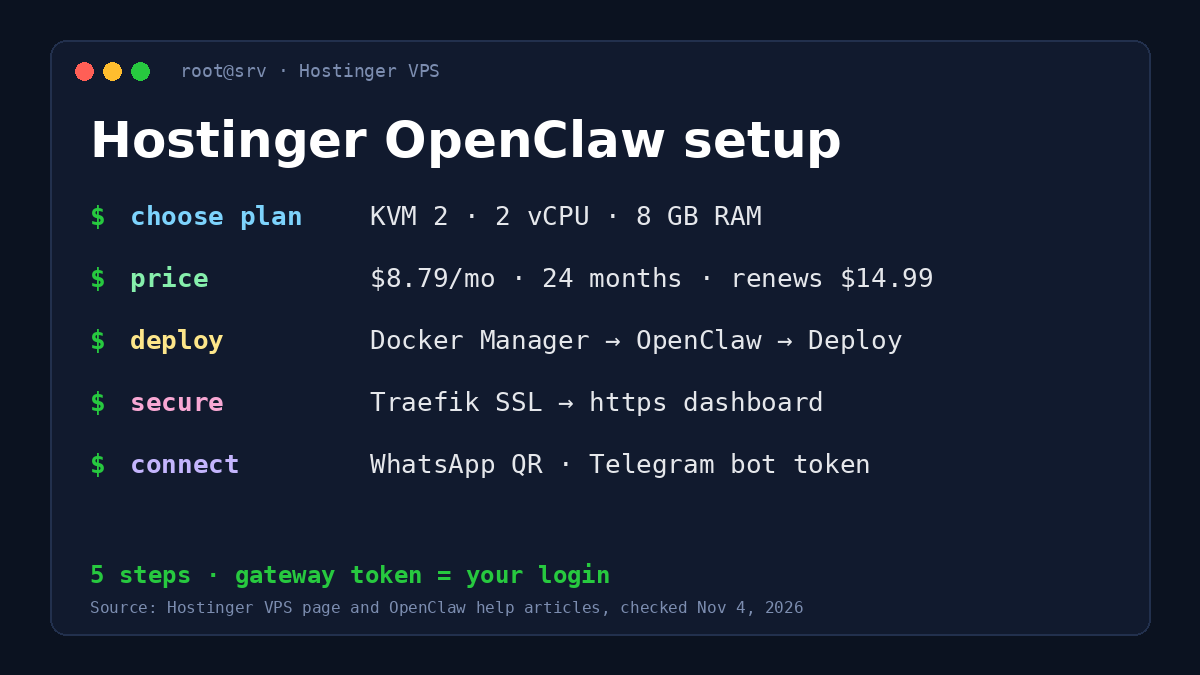
Setting up Hostinger OpenClaw comes down to five steps: buy a KVM 2 VPS with OpenClaw preinstalled (or add it to a VPS you already have through Docker Manager), save the gateway token, deploy, add SSL, then connect WhatsApp or Telegram. Hostinger recommends KVM 2 or larger, which costs $8.79 a month on a 24-month term ($210.96 upfront) and renews at $14.99 a month. The steps below follow Hostinger’s own OpenClaw help articles, and the prices were checked on November 4, 2026 on Hostinger’s US VPS page.
What Hostinger OpenClaw is
OpenClaw is an AI assistant that runs around the clock and answers you through chat apps such as WhatsApp and Telegram. Hostinger offers it two ways. The 1-Click managed option, where Hostinger runs the infrastructure, Docker and updates for you. And OpenClaw on a VPS, where Hostinger deploys it as a Docker app on your own server and you manage it from Docker Manager in hPanel. This guide covers the VPS route, which gives you full server control and room for other apps. If you are still choosing between the two, our best VPS for OpenClaw comparison puts the managed plan, the VPS and Cloudways side by side with four-year costs.
Before you start
- A plan with enough memory. Hostinger’s install guide recommends KVM 2 or greater: 2 vCPUs, 8 GB of RAM and 100 GB of NVMe storage. KVM 1 has 4 GB of RAM and one vCPU, below that recommendation.
- Access to an AI model. Either buy Hostinger’s Nexos AI credits at checkout, or bring your own API key from OpenAI, Anthropic, Google Gemini or xAI. Model usage is a separate cost from the VPS.
- A chat channel. A WhatsApp number with its country code, and optionally a Telegram bot token from @BotFather. Hostinger recommends a dedicated WhatsApp number for reliability.
- A working email address for the free SSL certificate in step 3. Hostinger warns that an invalid address means the certificate will not be issued.
How to install OpenClaw on a Hostinger VPS
Step 1, option A: buy a new VPS with OpenClaw preinstalled
- Open Hostinger’s OpenClaw VPS page and choose KVM 2 or larger. OpenClaw is preselected at checkout.
- Optionally add Nexos AI credits for the AI model and Oxylabs credits for web search.
- Complete the purchase. On the configuration screen, fill in the environment variables: the auto-generated gateway token, your WhatsApp number, and your own API keys if you skipped the credits.
- Click Deploy. Setup can take several minutes, and the app then appears with its open ports.
Step 1, option B: add OpenClaw to a VPS you already have
- In hPanel, open VPS and click Manage next to your server.
- Select Docker Manager in the left menu. If it is not installed yet, click Install and wait 2–3 minutes.
- Open the Catalog tab, search for OpenClaw and click Select.
- Fill in the gateway token, your WhatsApp number with country code, an optional Telegram bot token, and any API keys. The key fields can stay blank and be added later.
- Click Deploy and wait for Docker to create the project.
Check each API key field’s label in the dashboard before pasting a key. Hostinger’s guide describes the Anthropic and OpenAI fields in a confusing way, and a key in the wrong field simply will not work.
Step 2: save the gateway token
The gateway token is your password to the OpenClaw dashboard. Copy it into a password manager before you deploy. If you lose it, go to Docker Manager, open Projects, click Manage on the OpenClaw project and read it under Environment.
Step 3: add SSL before you log in
Without SSL, the dashboard opens over plain HTTP on your server’s IP and port, and Hostinger lists errors such as “control ui requires device identity” as the result. The fix takes a few minutes:
- In Docker Manager, click Deploy Traefik from the catalog.
- Enter a valid email in the ACME_EMAIL field and deploy.
- Wait until the Traefik project shows Running. The order does not matter: Traefik works whether you deploy it before or after OpenClaw.
OpenClaw’s Docker setup already includes the Traefik settings, so there is no certificate to configure by hand. Hostinger advises against removing Traefik later, because the dashboard falls back to HTTP and the same errors return.
Step 4: open the dashboard and log in
Go to Docker Manager, open your projects and click Open in the Access column of the OpenClaw project. You land on a secured Hostinger subdomain such as https://openclaw-xxxx.srv123456.hstgr.cloud. You can also click the OpenClaw button on the VPS Overview page. Paste your gateway token and click Login.
Step 5: connect WhatsApp or Telegram
- WhatsApp: in the dashboard, open Channels, click Show QR, then on your phone go to Settings, Linked Devices, Link a Device and scan. Wait for “Linked: Yes” and “Connected: Yes”.
- Telegram: paste your BotFather token in the Telegram section of Channels, click Save and wait for the gateway to restart. The status should show Running, polling mode and “Probe ok”.
Send “Hi” on the connected channel to confirm the assistant answers.
Common problems and fixes
- “WhatsApp login failed: status=515”: go to Settings, Config, click Update in the top-right corner, then check Channels again.
- The QR code keeps refreshing: log out of all linked devices on your phone, click Logout in the dashboard, restart the container and scan quickly. Pairing requests expire after 1 hour, and OpenClaw allows only 3 pending requests per channel.
- Telegram keeps asking to pair, or the bot is silent: restart the OpenClaw container from Docker Containers, then check that Health shows OK.
- Anything else: read the logs under Docker Manager, Projects, the three-dot menu, View logs.
Keeping it updated and secure
On the VPS route, updates are your job. In Docker Manager, open the project’s three-dot menu and click Update; Docker pulls the latest image and restarts the container. The managed 1-Click option does this for you, which is the main reason to pick it. Keep the gateway token and API keys private, never paste them into a public chat or code repository, and leave Traefik running so the dashboard stays on HTTPS.
A self-managed server also means you own the rest of it: Hostinger’s VPS FAQ says you are responsible for your server, while Hostinger handles the physical hardware. Our Hostinger VPS guide covers the plans and what Hostinger does and does not manage.
What it costs to run
KVM 2 costs $210.96 for the first 24 months and then $14.99 a month, so four years come to $570.72 before AI model charges and tax, or $11.89 a month on average. The plan includes a 30-day money-back guarantee; our Hostinger refund policy guide explains what it covers. If OpenClaw is your first server, our list of the best VPS hosting for beginners explains why KVM 2 also suits WordPress sites next to the assistant.
FAQ
Do I need my own API key for Hostinger OpenClaw?
No. At checkout you can add Nexos AI credits instead. If you skip them, enter a key from OpenAI, Anthropic, Gemini or xAI during deployment, or leave the fields blank and add one later.
Can I run OpenClaw next to WordPress on the same VPS?
Yes. OpenClaw runs as a Docker project, so other apps can share the server. KVM 2’s 8 GB of RAM leaves room for that; KVM 1’s 4 GB is below Hostinger’s OpenClaw recommendation on its own. The Hostinger n8n setup guide covers another Docker app that can run beside it.
How do I add a model from another provider later?
Hostinger’s help center describes running the openclaw onboard command inside the OpenClaw container and then restarting the container.