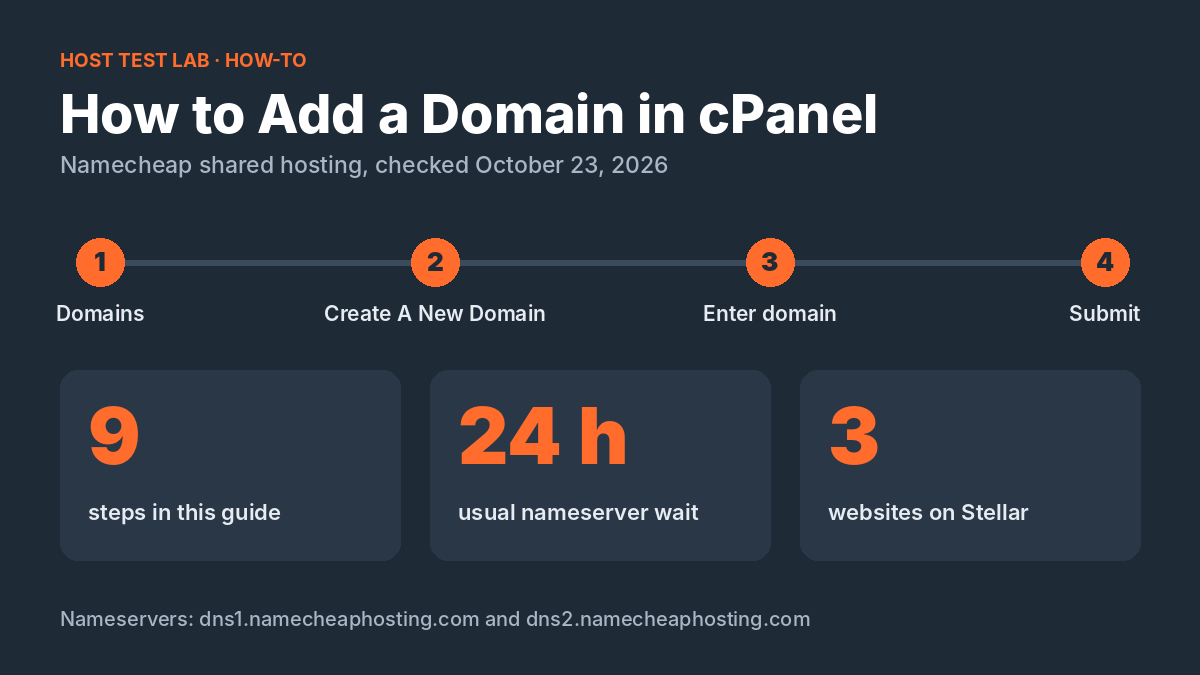
Here is how to add a domain in cPanel: open the Domains tool, click Create A New Domain, type the domain, leave “Share document root” unchecked and click Submit. The domain then gets its own folder and works as a separate website, once it points to your hosting. The walkthrough below uses Namecheap shared hosting, where a domain bought in the same account is pointed for you; a domain registered elsewhere needs Namecheap’s nameservers first, and the change can take up to 24 hours.
The steps were checked on October 23, 2026 against Namecheap’s help articles on creating an addon domain (updated July 17, 2026) and on nameservers for shared hosting, plus its US shared hosting page. The screenshots come from my own Namecheap account.
Before you start
- A hosting plan with cPanel that allows another site. Namecheap Stellar hosts 3 websites; Stellar Plus and Stellar Business host unlimited websites. A fourth website on Stellar means moving up to Stellar Plus.
- The domain itself. Buy it at Namecheap or any other registrar. Buying it in the same Namecheap account saves the nameserver step.
- About 10 minutes, plus up to 24 hours for the domain to start loading if you change nameservers.
I run my own sites on a Namecheap plan that allows many domains, and every new site starts with these same steps in cPanel.
How to add a domain in cPanel, step by step
Step 1: Buy the domain
On Namecheap, open Domains at the top of the page and choose Domain Name Search. Search for the name you want and complete the purchase. If you already own the domain, skip this step.

Step 2: Open your Namecheap dashboard
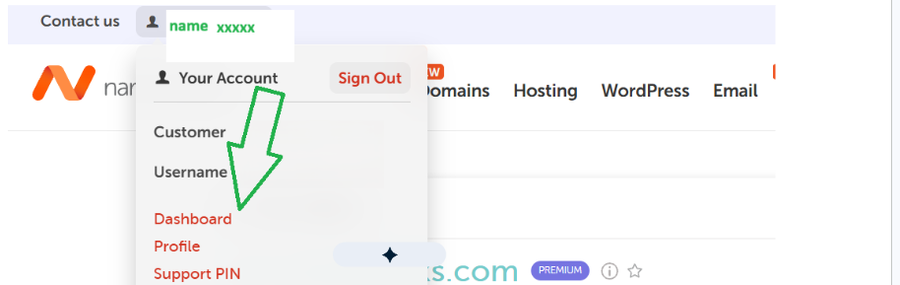
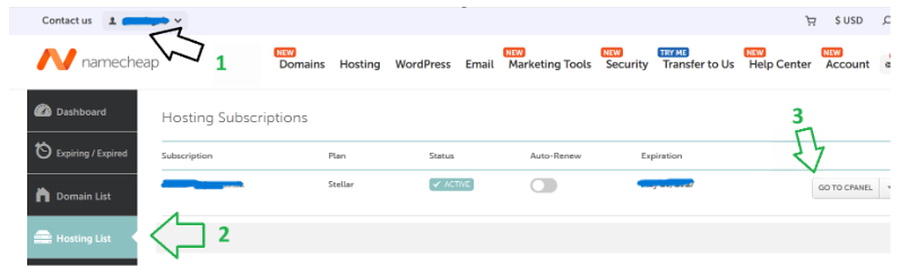
Click your account name at the top left of the page, then choose Dashboard from the menu.
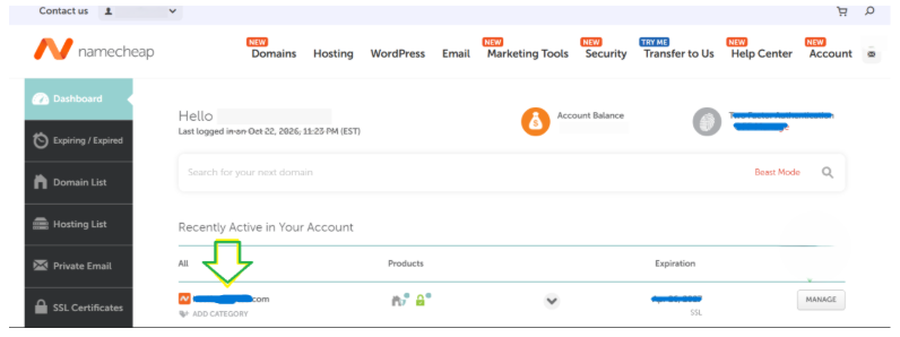
The new domain appears under “Recently Active in Your Account”. That confirms the purchase went through.
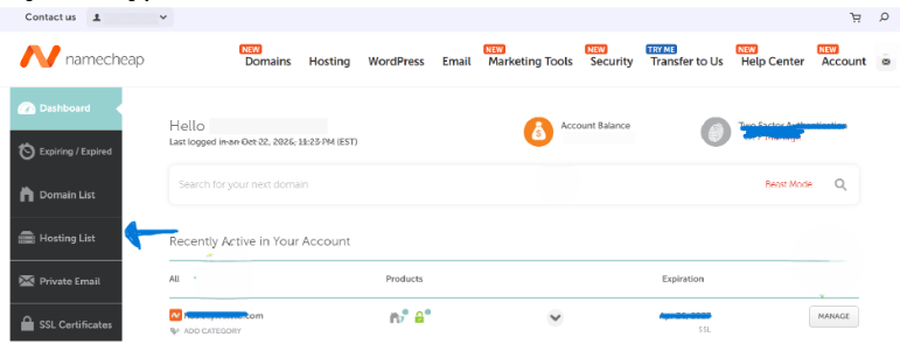
Step 3: Go to your hosting list
In the dark menu on the left, click Hosting List. This page shows every hosting plan in your account.
Step 4: Open cPanel
Find the hosting plan you want to use and click Go to cPanel on the right.
Step 5: Open the Domains tool
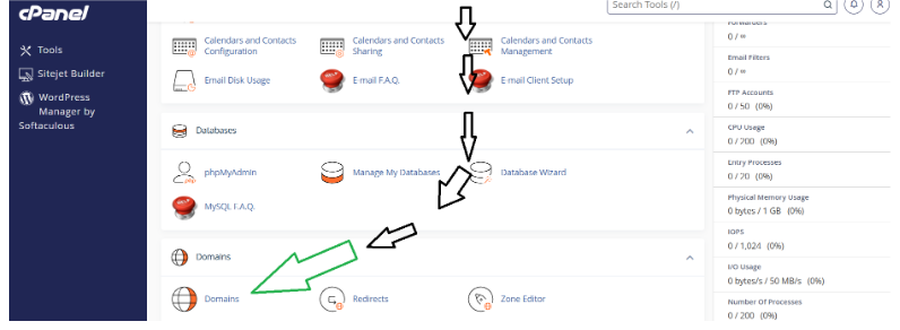
Scroll down to the Domains section and click the Domains icon. You can also type “Domains” in the search box at the top of cPanel.
Step 6: Click Create A New Domain
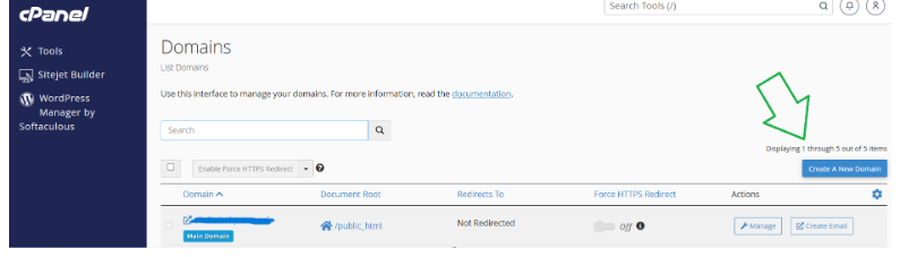
The Domains page lists the domains already on the account, starting with your main domain. Click the blue Create A New Domain button on the right.
Step 7: Enter the domain
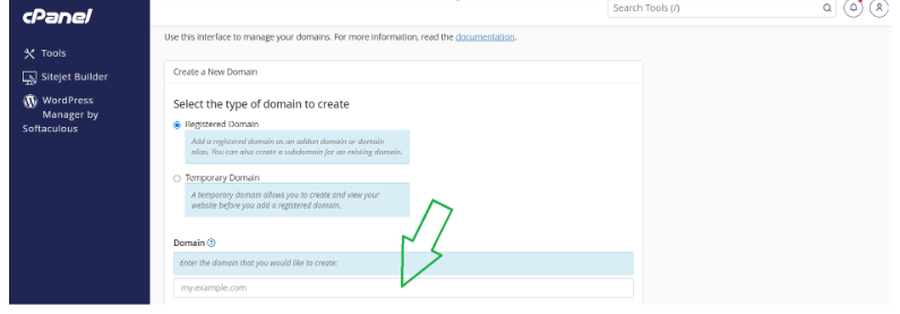
Keep Registered Domain selected, since you are adding a domain you own. Type the domain without “www” or “https”, for example mydomainhere.com.
Step 8: Check the document root and submit
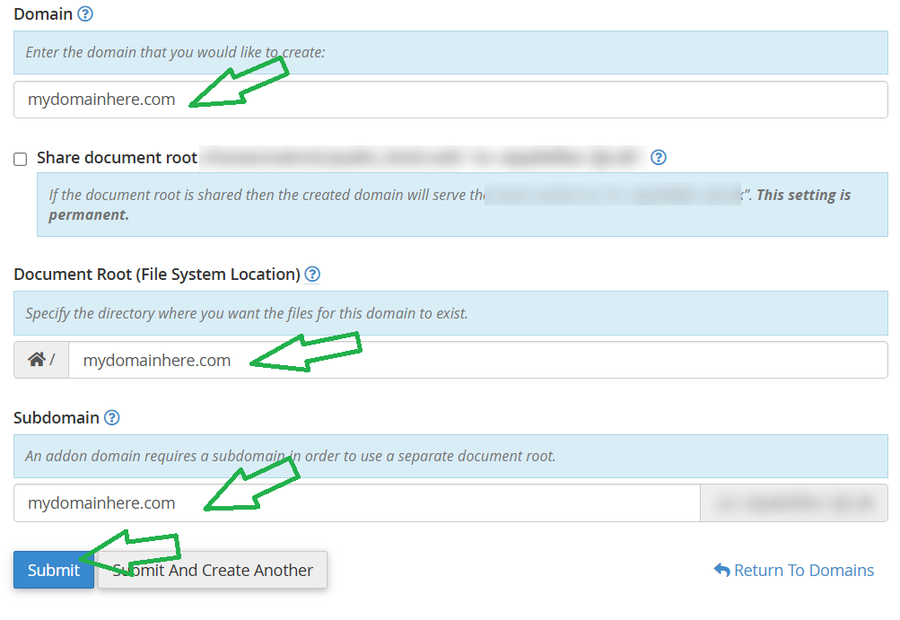
When you type the domain, cPanel fills in the next fields for you. Namecheap’s help article confirms that the subdomain field is filled in automatically. Check three things before you click Submit:
- Leave “Share document root” unchecked. If it is checked, the new domain shows the same content as your main site, and cPanel warns that this setting is permanent.
- Document Root is the folder where the new site’s files will live, normally named after the domain. Leave it as cPanel suggests.
- Subdomain is filled in automatically. cPanel needs it to give the addon domain its own folder, so you do not need to change it.
Click Submit. The domain now appears in the list on the Domains page.
Step 9: Point the domain to your hosting
Namecheap’s help article says the domain must use Namecheap’s web hosting nameservers. Whether you need to do anything depends on where the domain came from:
- Bought with your hosting plan: Namecheap says the DNS is switched to its hosting automatically.
- Already in your Namecheap account, but using other DNS: go to Domain List, click Manage next to the domain, choose Namecheap Web Hosting DNS under Nameservers and click the checkmark to save.
- Registered elsewhere: set the nameservers at that registrar to dns1.namecheaphosting.com and dns2.namecheaphosting.com.
Namecheap says the change can take up to 24 hours to reach every network, and longer in rare cases. One warning: switching nameservers overwrites any custom DNS records the domain had, so recreate them in cPanel’s Zone Editor if the domain already had email or other services set up.
After you add the domain
- Install your site. Upload files to the new domain’s folder, or install WordPress with the one-click installer in cPanel. Choose the new domain in the installer’s domain list so WordPress lands in the right folder.
- Check HTTPS. Namecheap’s shared hosting page lists free automatic SSL installation on every Stellar plan. Once the domain points to the hosting, open it with https:// and check for the padlock.
- Set up email. Create mailboxes for the new domain in cPanel’s Email Accounts tool, so you can use an address like hello@mydomainhere.com.
Our Namecheap cPanel guide covers the rest of the control panel, including backups and email.
If the new domain does not work
- The domain shows an error or a parking page: the nameservers have not reached your network yet. Wait up to 24 hours after the change before troubleshooting further.
- It shows your main site’s content: “Share document root” was checked. That setting is permanent, so remove the domain in the Domains tool and add it again with the box unchecked. Namecheap notes that removing a domain leaves its folder and files in File Manager, so delete them by hand if you do not need them.
- cPanel will not add the domain: check your plan’s website count first. Stellar hosts 3 websites, so a fourth needs Stellar Plus, which has no website limit.
- The page is blank or shows a folder listing: the domain works, but its folder is empty. Install WordPress or upload your files.
Domain or hosting: which is which
Adding a domain in cPanel connects two things you pay for separately: the domain name and the hosting it points to. Our domain vs hosting guide explains what each costs, and the Namecheap hosting review compares the Stellar plans if you need room for more sites.
Add a domain in cPanel FAQ
What is the difference between an addon domain and a subdomain?
An addon domain is a separate website with its own name, such as mydomainhere.com. A subdomain is part of an existing domain, such as blog.yoursite.com. Namecheap’s subdomain count is separate from its website count: Stellar allows 30 subdomains and 3 websites.
Can I add a domain that is registered with another company?
Yes. Add it in cPanel the same way, then set its nameservers at your registrar to dns1.namecheaphosting.com and dns2.namecheaphosting.com. If you cannot change nameservers, Namecheap offers domain control validation instead, and its validation code is valid for one day.
Does removing a domain from cPanel delete the website?
No. Namecheap says the folder and its content stay in File Manager after you remove the domain, so you can add it back or delete the files yourself.