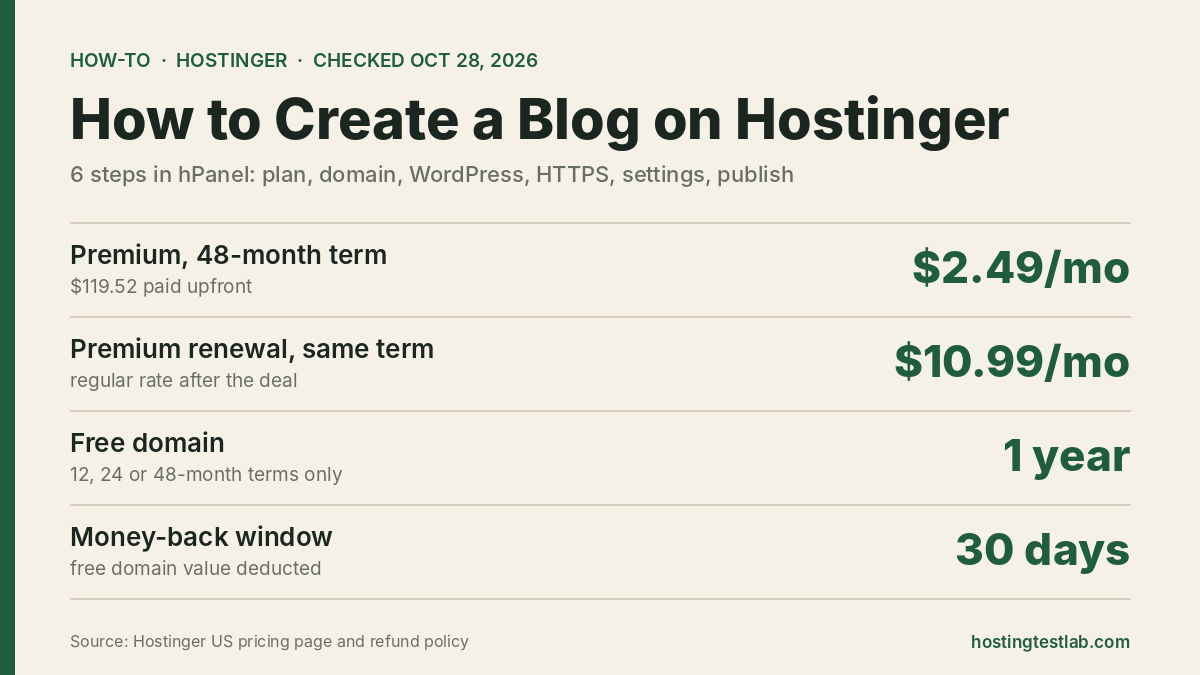
To learn how to create a blog on Hostinger, you need four things: a Premium or Unlimited web hosting plan on a 12-, 24- or 48-month term, the free domain that comes with it, WordPress installed from hPanel, and a few settings changed before your first post. The whole setup happens inside Hostinger’s dashboard, with no file uploads or database work. For a single blog, Premium on the 48-month term costs the least over four years. Pick Unlimited if you want staging and on-demand backups. Prices and plan features below were checked on October 28, 2026, on Hostinger’s US pricing and plan comparison pages, and the setup steps on Hostinger’s own documentation.
What you need before you start
Hostinger has no free hosting tier, so the first step is choosing a plan. These are the two web hosting plans that make sense for a blog. Every plan is paid upfront for the full term.
| Plan | 48 months, paid today | 12 months, paid today | Renewal | Websites | Backups | Staging |
|---|---|---|---|---|---|---|
| Premium | $119.52 ($2.49/mo) | $47.88 ($3.99/mo) | $10.99/mo for the same term | 3 | Weekly | No |
| Unlimited | $167.52 ($3.49/mo) | $59.88 ($4.99/mo) | $16.99/mo for the same term | Unlimited | Daily, plus on-demand | Yes |
Premium is enough for one blog: it includes 20 GB of storage and room for three websites. Unlimited adds a staging tool and on-demand backups, which matter once the blog earns money and a broken plugin update would cost you traffic. If you are still comparing hosts, the best hosting for bloggers guide puts Hostinger next to the alternatives.
How to create a blog on Hostinger in 6 steps
1. Pick the billing term with the renewal in mind
The term changes the total far more than the plan does. Hostinger’s checkout says each plan renews at the regular rate for the same term, so the cheap first bill is not what you pay in year two.
| Premium, first 4 years | Total | Average per month |
|---|---|---|
| Monthly billing ($12.19/mo, no free domain) | $585.12 | $12.19 |
| 12 months, then three yearly renewals ($131.88 each) | $443.52 | $9.24 |
| 48 months, paid once | $119.52 | $2.49 |
The totals cover hosting only and leave out the domain after its free year, because Hostinger’s pages do not list that renewal price. The 48-month term costs $324 less than paying year by year, but you pay $119.52 on day one. When those four years end, a 48-month renewal at $10.99 a month comes to $527.52, so set a reminder well before that date. The Hostinger renewal price breakdown shows the other terms.
2. Claim your free domain
Premium and Unlimited include a domain free for one year, but only on new 12-, 24- or 48-month purchases. Monthly billing does not include one. After checkout, open hPanel and click Claim domain. Eligible extensions include .com, .online, .site, .me and .press, and Hostinger shows the final list on the claim page. Choose a name you can keep for years: changing domains later means redirecting every post you have published. If the difference between the two is unclear, read domain vs hosting first.
3. Install WordPress from hPanel
Hostinger’s documentation gives two routes. For a new site:
- In hPanel, open Websites and click Add website.
- Select Install WordPress.
- Choose your new domain.
- Set the admin username, password, site title and language.
- Finish the setup. Hostinger says WordPress is ready within seconds.
If the domain already has a site, use Auto Installer in the website dashboard instead. Its install path field lets you put WordPress in a subfolder such as /blog, which keeps an existing homepage untouched. Use an admin email you check, because WordPress sends password resets there.
4. Turn on HTTPS and caching
Hostinger installs a free SSL certificate automatically on every plan. Its docs still tell you to switch the WordPress address to https:// after installation, under Settings → General, so the browser padlock shows on every page. Then activate the LiteSpeed Cache plugin, which Hostinger recommends after setup. It handles page caching and image optimization, so you do not need a separate caching plugin.
5. Set up the blog before the first post
- Permalinks: under Settings → Permalinks, choose Post name so URLs read yoursite.com/post-title. Changing this after posts are indexed breaks old links.
- Theme: install one lightweight theme and delete the unused defaults, so fewer files need updates.
- Auto-updates: Hostinger’s Security tool offers smart auto-updates for core, plugins and themes, with an update log you can check if something breaks.
6. Publish, then protect your work
Write your first post under Posts → Add New and publish it. On Premium, backups run weekly, so a post written on Monday may not be in a backup until the next run. Export your posts from Tools → Export after each writing session until the blog is large enough to justify Unlimited’s daily backups. The WordPress staging guide explains how to test changes safely once you upgrade.
Warnings before you pay
- The renewal jump: Premium on a 12-month term goes from $3.99 to $10.99 a month, 2.75 times the first-year rate.
- The refund fine print: hosting is refundable within 30 days, but the free domain is not. Hostinger deducts the domain’s value from a refund, and its policy does not name the amount. The Hostinger refund policy post covers the details.
- Domain renewals: they are never refundable, even within 30 days.
- Premium limits: no staging, no on-demand backups and no object cache. That is fine for a new blog, but plan to upgrade before you start heavy plugin testing.
Premium or Unlimited for your blog?
Start on Premium if this is your first blog and you want the lowest four-year cost: $119.52 upfront covers 48 months. Choose Unlimited if you plan more than three sites or want to test changes on a staging copy first. It costs $48 more upfront on the 48-month term and raises the database limit from 10 to 150. For a full plan breakdown, see the Hostinger review. Either way, how to create a blog on Hostinger comes down to the same six steps above, and the plan only changes how safely you can grow.
Explore Hostinger hosting options
FAQ
Can I create a blog on Hostinger for free?
No. Hostinger’s support pages confirm its web hosting has no free tier. The closest option is a 7-day free trial of the AI Builder, and new hosting plans carry the 30-day money-back window.
Can I make a blog with Hostinger’s AI Builder instead of WordPress?
Yes. In the builder, open the Blog panel and click Start a blog to add a blog section, then Add new post. The blog only goes live when you publish the whole website. WordPress gives you far more plugins and themes, which matters if you plan to monetize.
How many blogs can I run on Hostinger Premium?
Up to three websites. Premium also caps you at 10 databases and 400,000 files (inodes), and each WordPress install uses one database. Unlimited raises these to 150 databases and 600,000 files.